
Quick Answer & Verdict
DailyUploads’ free tier moves at 3.0 MB/s, gated behind a 7-second countdown, a reCAPTCHA quota notice, and — in our test — a “Wrong IP address” error that appeared mid-session. Premium changes the math entirely: a single Chrome download hit 12.6 MB/s, and four files queued in JDownloader 2 produced combined readings of roughly 32 to 35 MiB/s. That’s the difference between a download finishing in minutes versus one that drags on while you babysit a browser tab.
The $12.99 30-day plan is the safest way to test the service on your own connection before committing further. Before you buy longer, know this: the 90-day plan is advertised at $29.99 on the pricing card, but our card checkout billed $44.99 — a $37.49 item price plus $7.50 in “Charges,” a $15 jump with no clear explanation for the inflated base price. Also worth knowing: the “Standard,” “Turbo,” and “Max” speed labels attached to each plan are marketing names, not verified speed tiers — every plan advertises the identical 300 GB/day allowance, and nothing in DailyUploads’ own materials assigns a different MB/s rate to any of them.
Key Facts & Benchmark Summary
Every figure below comes from hands-on testing on a 1 Gbps symmetric fiber connection, following our standard testing methodology.
| Metric | Result |
|---|---|
| Free tier speed | 3.0 MB/s observed on a 767 MB file |
| Free tier gating | 7-second countdown, reCAPTCHA quota notice |
| Chrome single-file speed | 12.6 MB/s |
| Chrome parallel speed | 20.5 MB/s combined (11.5 + 9.0 MB/s across 2 files) |
| JD2 4-file speed | 32–35 MiB/s combined (two captures) |
| Advertised daily quota | 300 GB across all plans |
| JD2 displayed balance | 229.749 GiB remaining |
| Starter price | $12.99 for 30 days |
DailyUploads Plans & Pricing: Standard, Turbo & Max
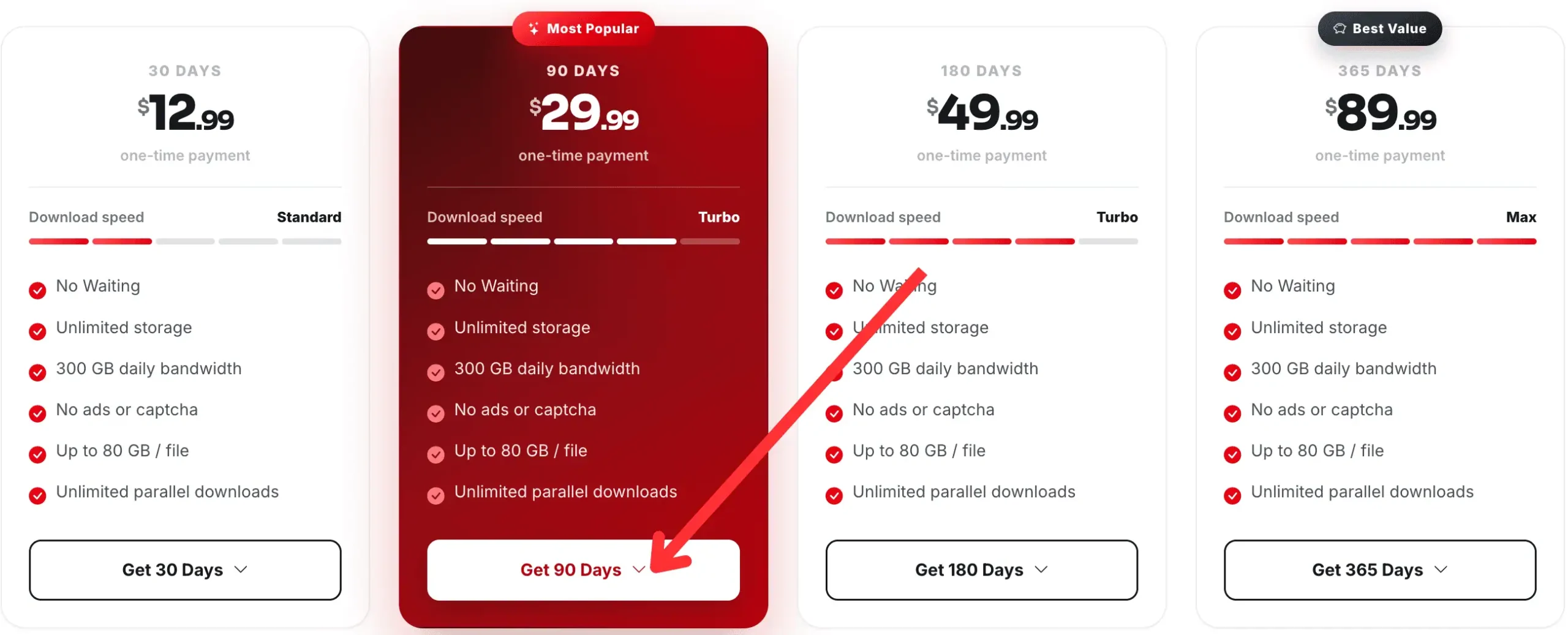
DailyUploads sells four plans, all labeled “one-time payment.” Every card lists the same core package: 300 GB of daily bandwidth, unlimited storage, parallel downloads, no waiting or ads, and a file-size ceiling of up to 80 GB per file.
| Duration | Total Price | Speed Label | Daily Bandwidth |
|---|---|---|---|
| 30 days | $12.99 | Standard | 300 GB |
| 90 days | $29.99 | Turbo | 300 GB |
| 180 days | $49.99 | Turbo | 300 GB |
| 365 days | $89.99 (~$7.50/mo) | Max | 300 GB |
The $15 Checkout Price Spike Trap
This is the single most important thing to check before you pay. The 90-day plan card advertises $29.99. Our Visa/MasterCard checkout screen told a different story: a $37.49 item price plus $7.50 in “Charges,” totaling $44.99 — a full $15 above the sticker price, a 50% increase.
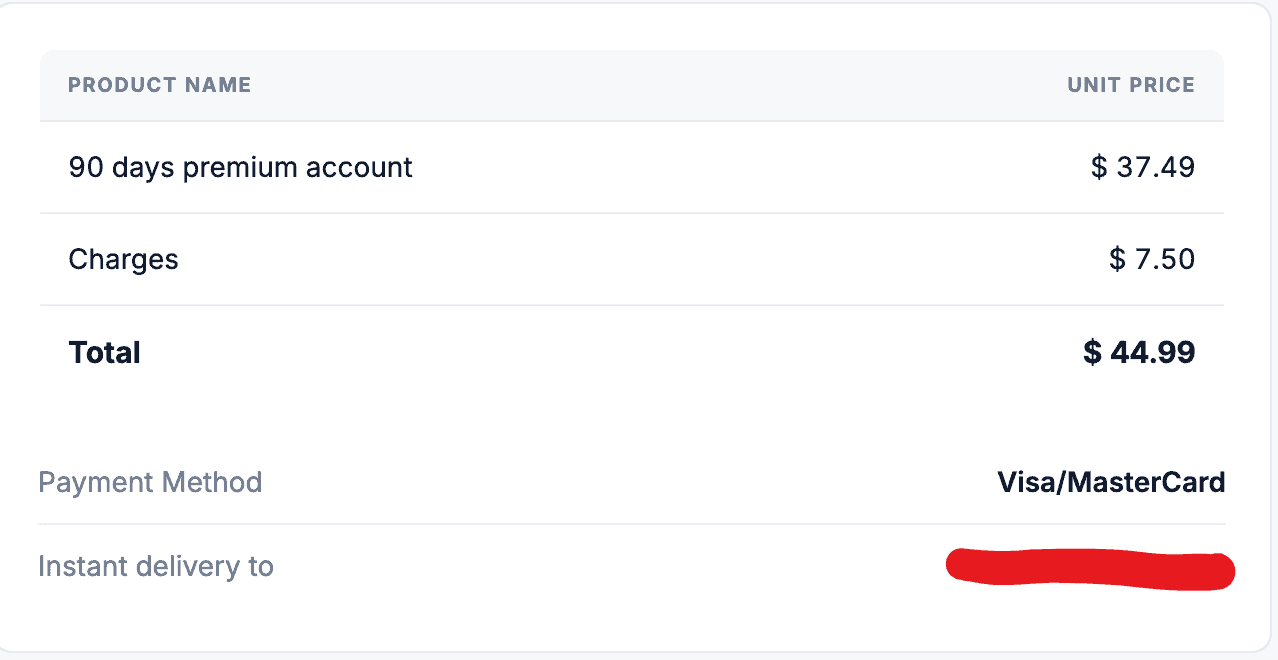
Only $7.50 of that increase is explicitly labeled “Charges.” The remaining jump — the item price itself climbing from $29.99 to $37.49 — isn’t explained anywhere on the checkout screen. This isn’t a rounding error or a currency conversion quirk; it’s a direct discrepancy between the advertised price and what the card gateway actually bills. Before you commit to the 90-day plan with a card, confirm the real total at checkout, and don’t be surprised if it lands closer to $45 than $30.
Debunking the Speed Labels
DailyUploads brands its plans “Standard” (30 days), “Turbo” (90 and 180 days), and “Max” (365 days) — names that strongly imply a performance hierarchy. They don’t deliver one. Every single plan, regardless of label, advertises the identical 300 GB/day bandwidth allowance. There’s no published MB/s or MiB/s figure tied to any label, and our testing used a single Premium account with no way to confirm which tier it corresponded to. Treat “Turbo” and “Max” as duration-and-price branding, not a guarantee of faster transfers than “Standard.”
Payment options include credit cards, PayPal, paysafecard, and cryptocurrency (Bitcoin, Litecoin, and Tether), with some crypto buttons carrying a “NO FEE” label — though that label doesn’t account for network transaction costs on the blockchain side, so confirm your own wallet’s fees separately.
FileHostReviews may earn a commission from purchases made through its links.
Check Current DailyUploads PlansFree vs Premium: What Actually Changes
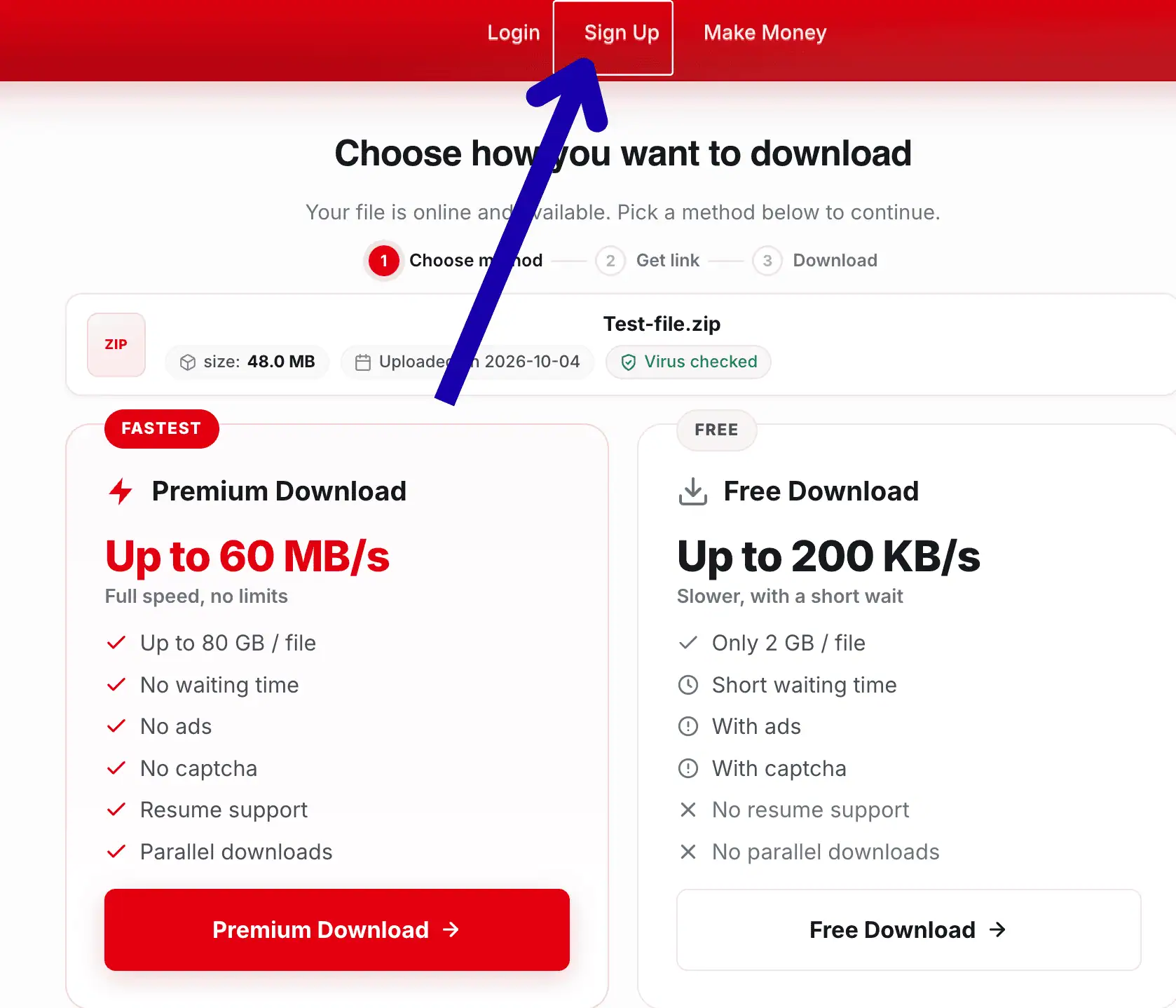
Free access is advertised at “up to 200 KB/s,” though our own capture ran considerably faster at 3.0 MB/s on a 767 MB file — still a fraction of what Premium delivers, and bundled with waiting periods and verification steps that Premium removes entirely.
| Feature | Free Access | Premium Access |
|---|---|---|
| Observed Chrome speed | 3.0 MB/s | 12.6 MB/s single file |
| Advertised speed | Up to 200 KB/s | Up to 60 MB/s |
| Waiting / CAPTCHA | 7-second wait + reCAPTCHA | None advertised |
| Max file size | 2 GB per file | Up to 80 GB per file |
| Resume support | Not advertised | Advertised |
| Parallel downloads | Not supported | Supported and confirmed in testing |
Our free-tier Chrome capture showed 3.0 MB/s on a 767 MB archive, with 97.4 MB transferred and roughly four minutes remaining at that point in the download.
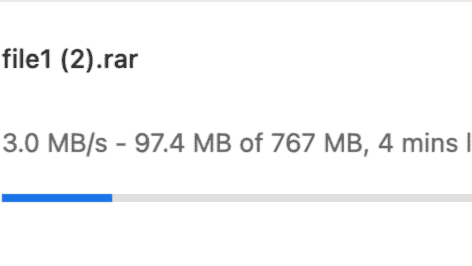
Getting to that download required clearing a “Wait 7 seconds” countdown and a reCAPTCHA quota notice. During our test, the page also displayed a “Wrong IP address” warning alongside the standard gating — an error that appeared without clear explanation and adds another layer of friction to an already slow free experience.
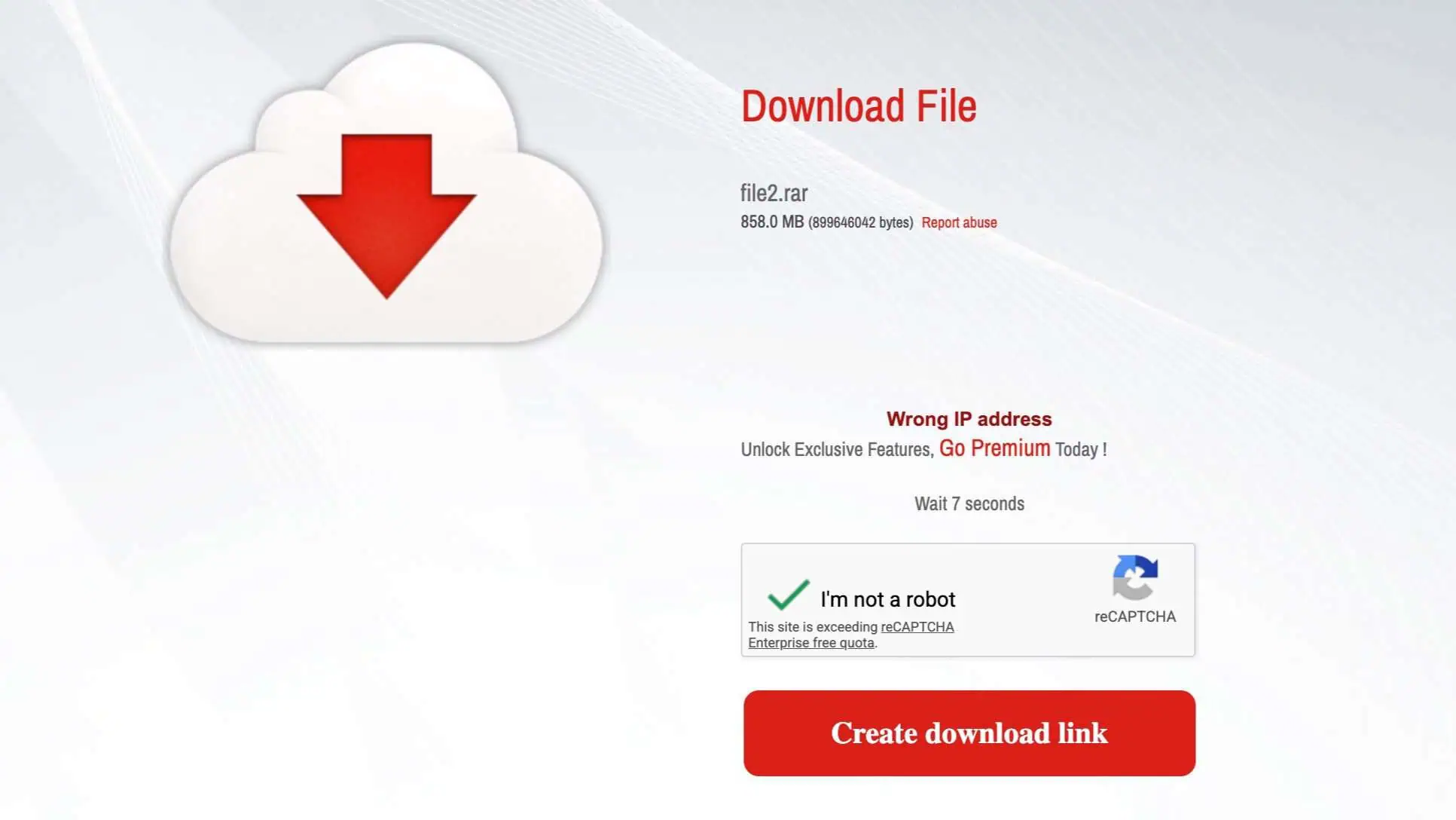
For a single small file, the free tier’s 7-second wait and modest speed are tolerable. For anything larger, or if you hit the IP warning repeatedly, Premium removes the friction entirely.
Real Speed Test Results: Chrome vs JDownloader 2
All Premium tests ran on a 1 Gbps symmetric fiber connection. Chrome reports speeds in MB/s; JDownloader 2 reports in MiB/s — both are kept in their native units below.
Single File in Chrome (12.6 MB/s)
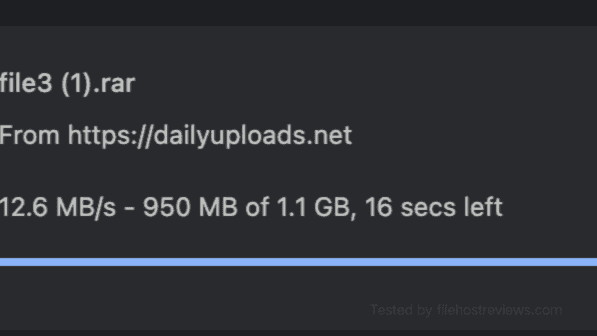
A single 1.1 GB archive downloaded at 12.6 MB/s in Chrome, with 950 MB transferred and 16 seconds remaining at the moment of capture — a solid result for a straightforward browser download with no download manager involved.
Two Parallel Downloads in Chrome (20.5 MB/s)
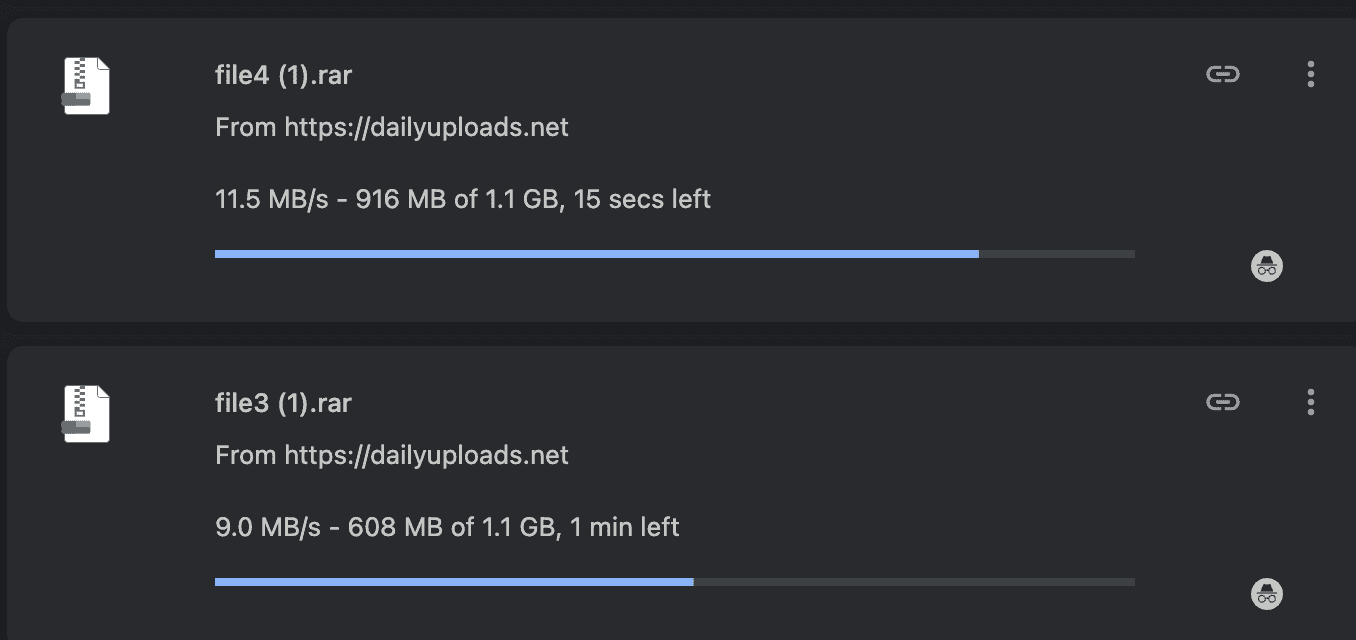
Running two files simultaneously produced 11.5 MB/s and 9.0 MB/s per file, for a combined 20.5 MB/s — confirming that Premium supports true parallel browser transfers rather than throttling a shared connection.
Four Files in JDownloader 2 (32 to 35 MiB/s)
Queuing four files at once in JDownloader 2 is where DailyUploads shows its real throughput. We captured two separate moments of the same four-file queue to confirm the result holds steady rather than relying on a single snapshot.
The first capture showed the JD2 chart reporting a Current speed of 35.01 MiB/s and an Average of 32.42 MiB/s, with the four individual file rows summing to 34.00 MiB/s. The selected file (file1) in the Download Overview panel showed 9.829 MiB/s on its own.
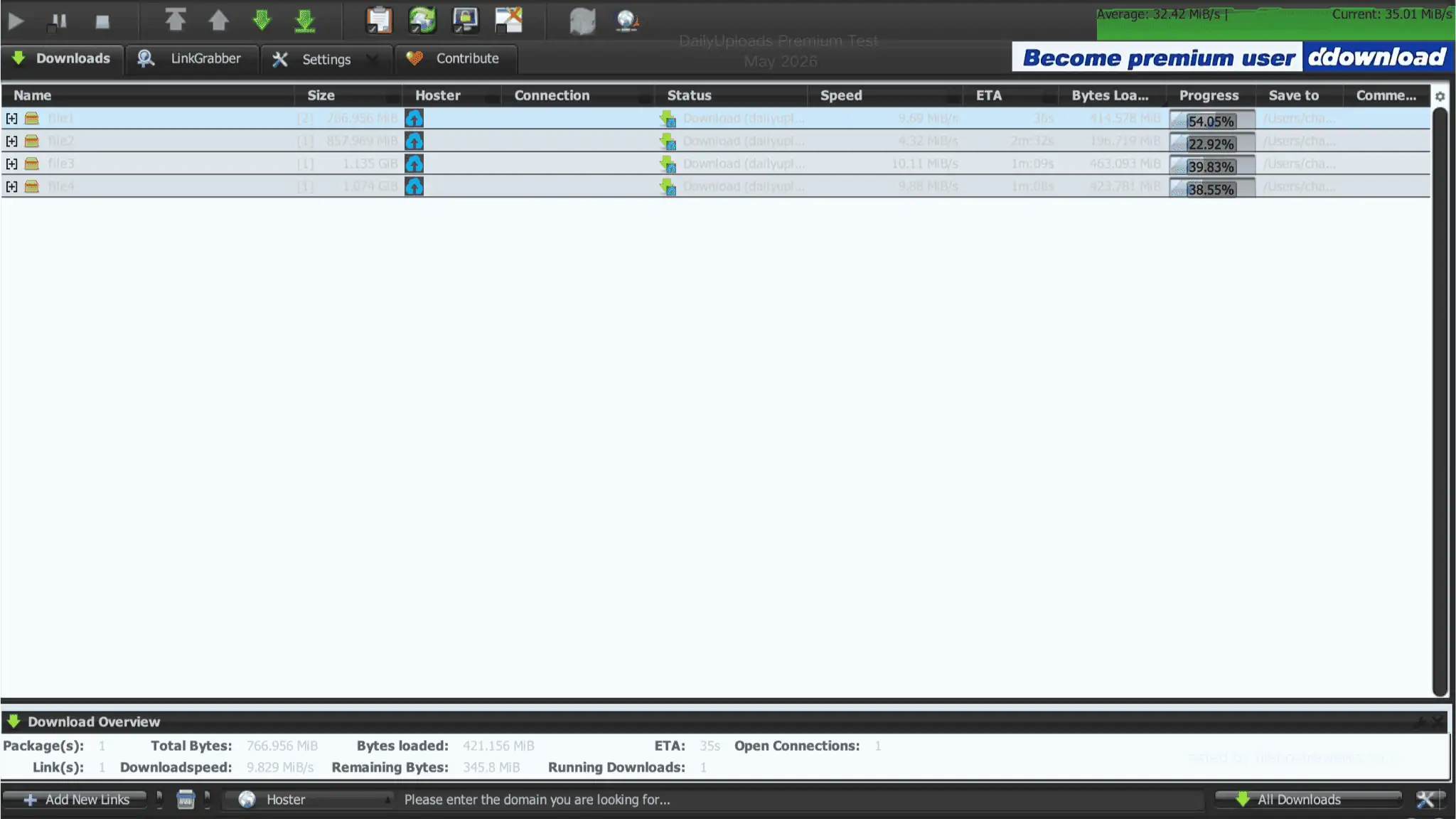
A later capture of the same queue, at a further point in the download, showed Current at 31.91 MiB/s, Average climbing slightly to 33.18 MiB/s, and the four file rows summing to 33.03 MiB/s. The selected file1 ticked up marginally to 9.942 MiB/s.
| JD2 Display | First Capture | Later Capture |
|---|---|---|
| Chart Average | 32.42 MiB/s | 33.18 MiB/s |
| Chart Current | 35.01 MiB/s | 31.91 MiB/s |
| Sum of four file rows | 34.00 MiB/s | 33.03 MiB/s |
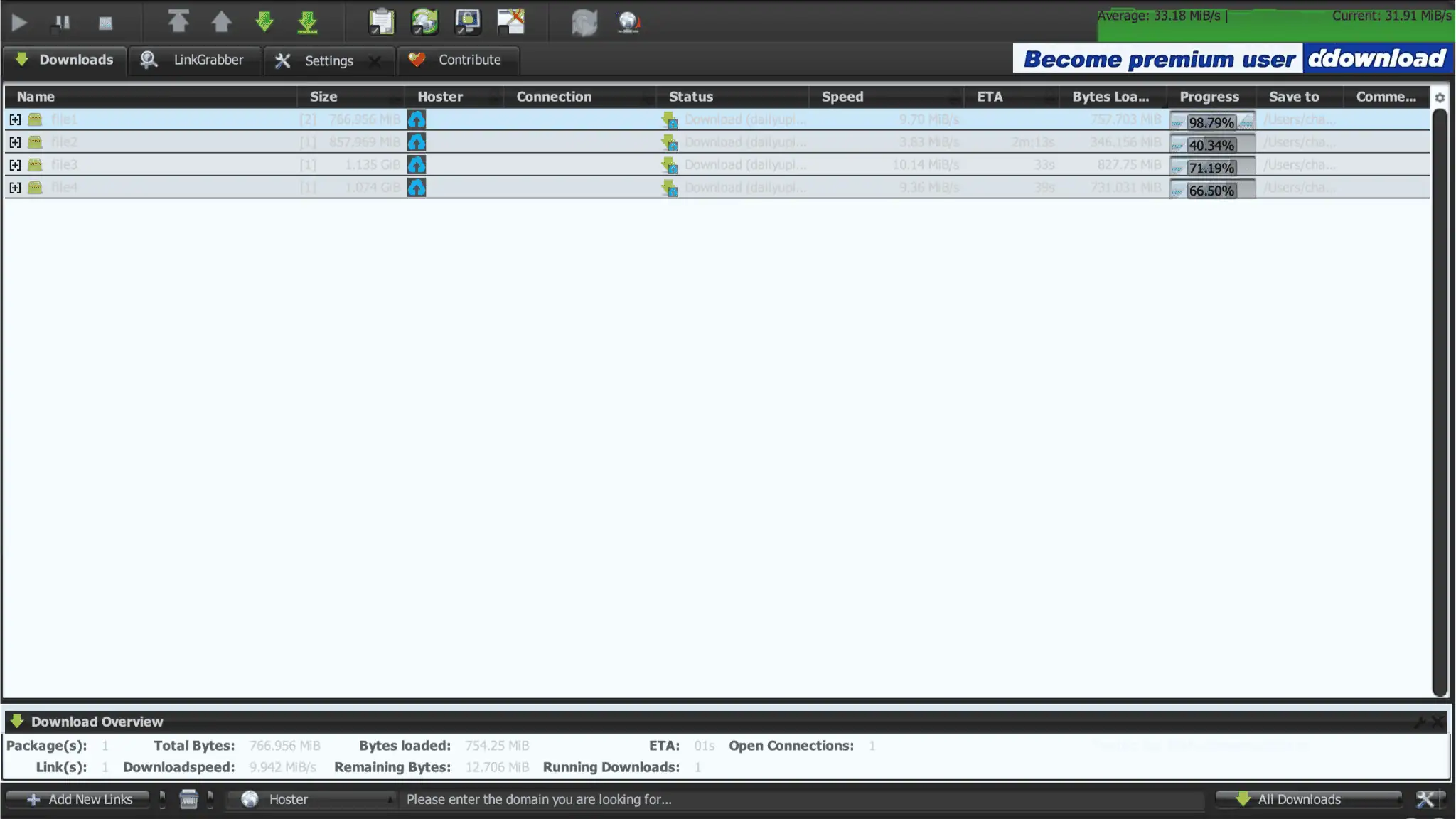
Both captures land in the same range — roughly 32 to 35 MiB/s combined across four active files — making that window a reliable benchmark rather than a lucky single reading. For multi-part archives, this is the configuration to use: queue every part simultaneously in JD2 rather than pulling files one at a time through the browser.
How to Buy DailyUploads Premium & Redeem Keys
Create an account, select a plan, and inspect the final checkout total carefully before paying:
- Sign up. Click Sign Up in the header. Enter a username, email, password, and password confirmation — the form requires eight or more characters with letters and numbers. Complete the CAPTCHA and click Submit.
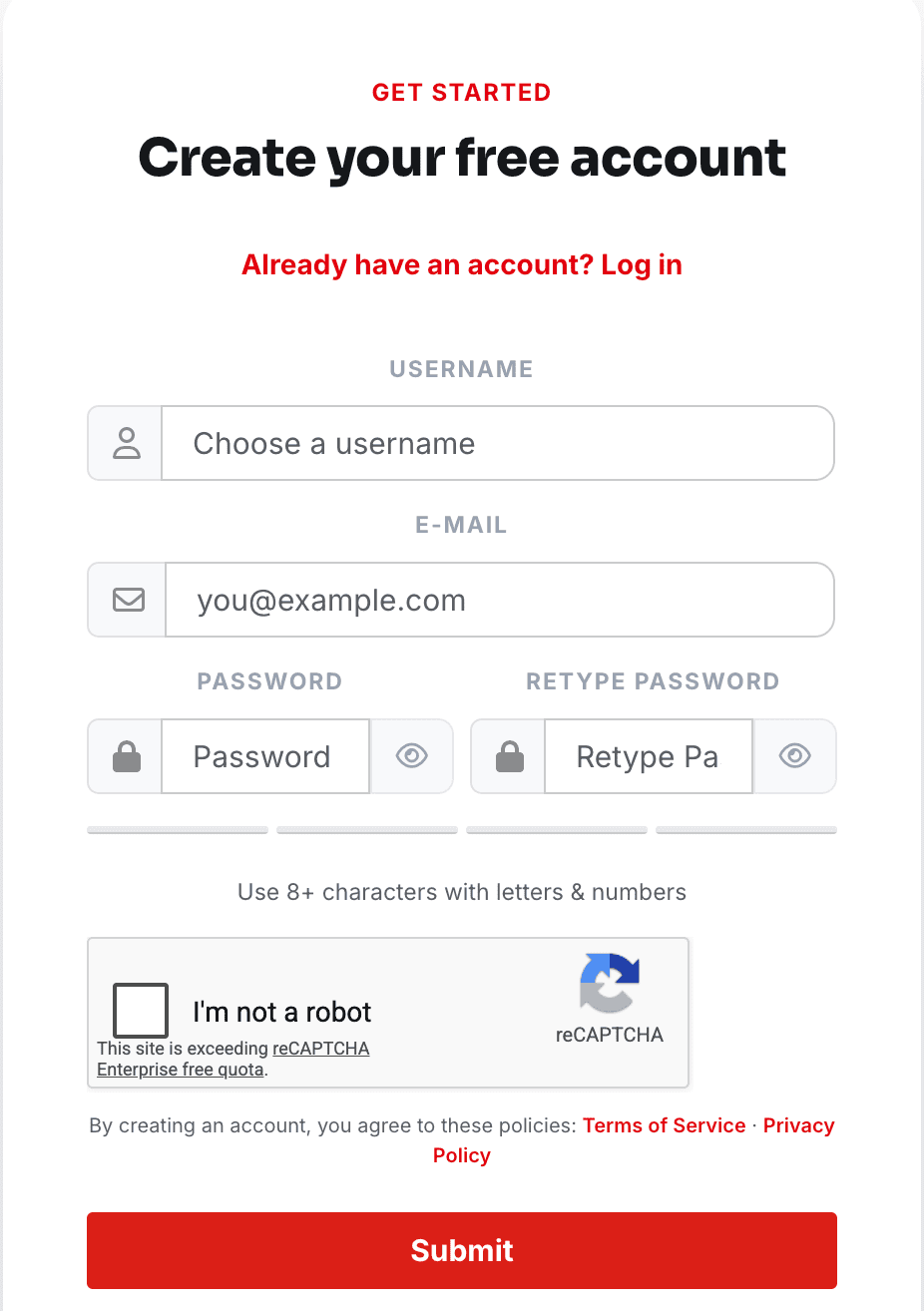 Registration form with username, email, password and CAPTCHA fields.
- Open Premium plans. Log in and click Premium in the main menu. Choose the duration and speed label you want, then open its payment options.
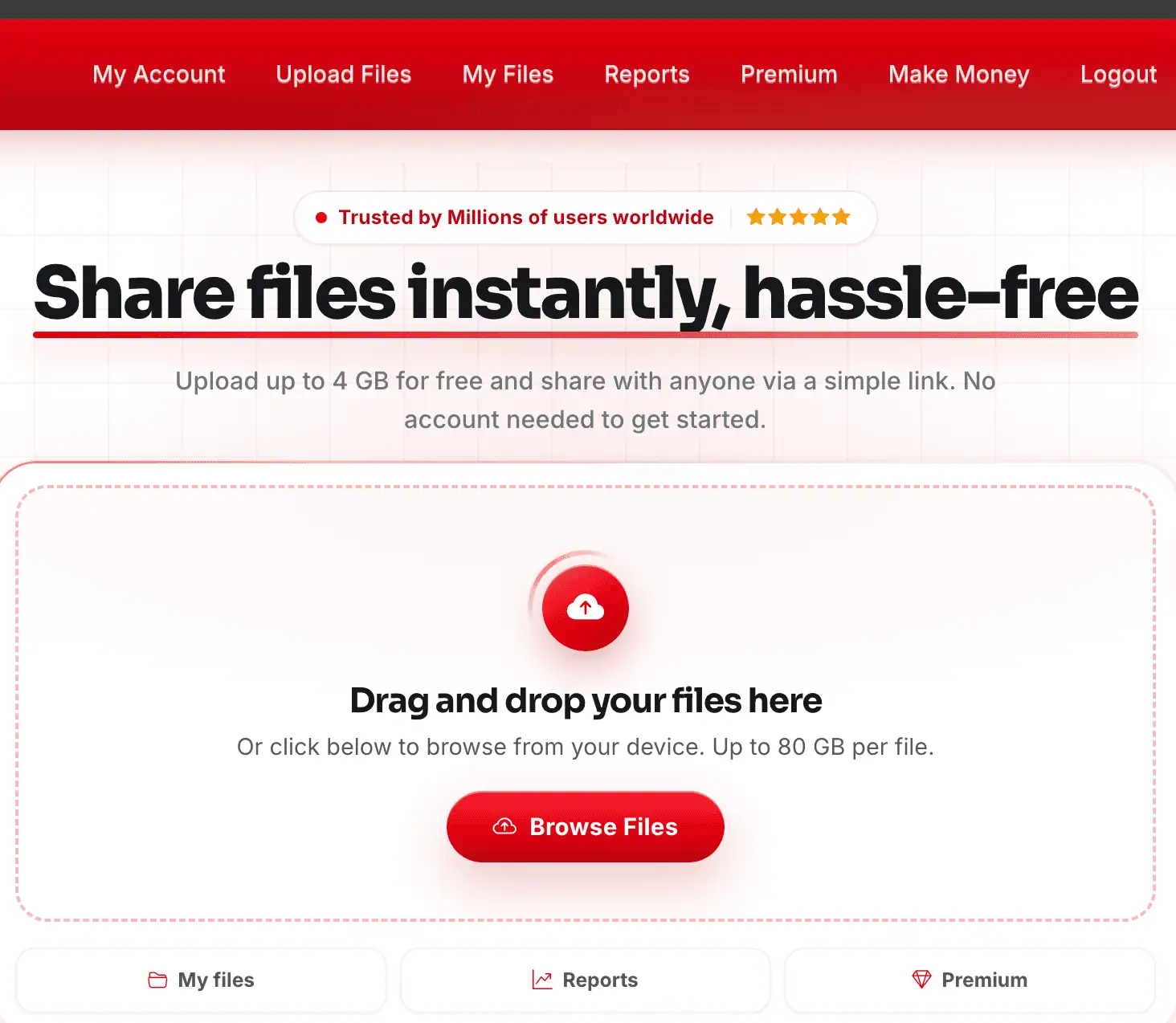 Logged-in navigation showing the Premium link.
- Select a payment route. The menu lists card options, PayPal, paysafecard, Bitcoin, Litecoin, and Tether. Some crypto buttons display a “NO FEE” label — that covers the platform’s own fee, not necessarily network transaction costs on your end.
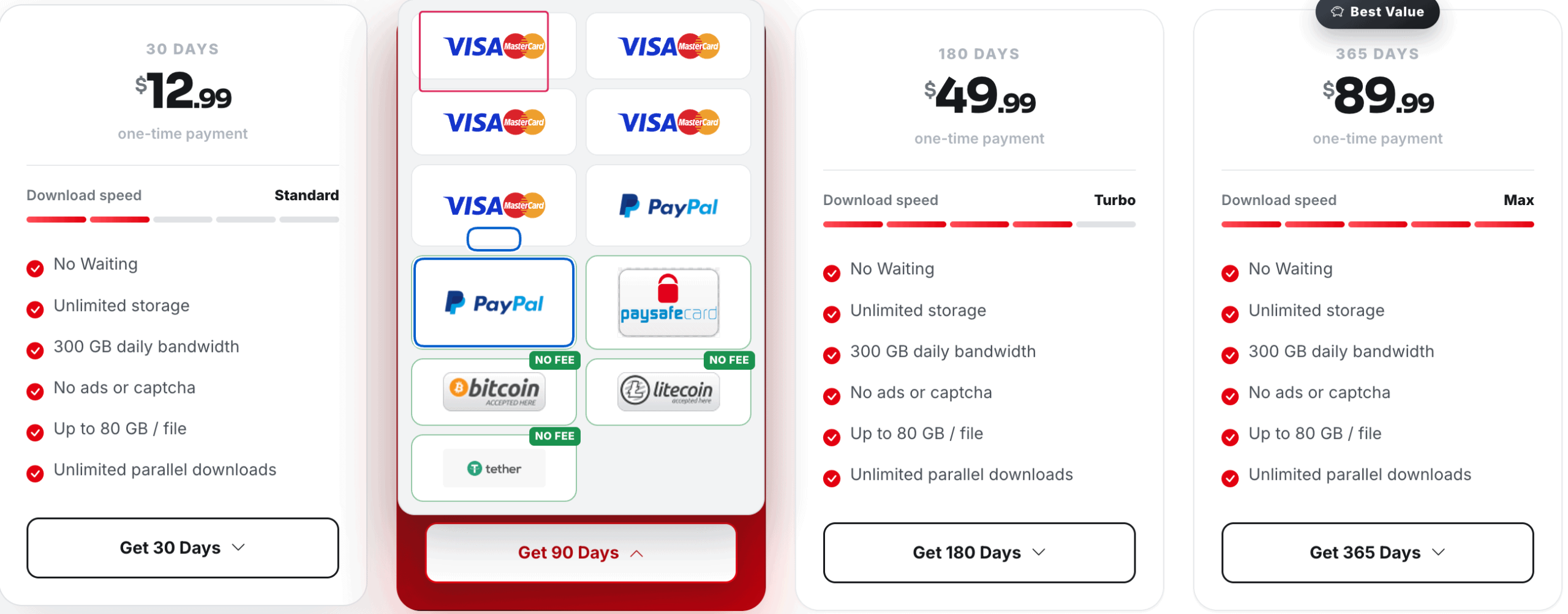 Payment menu showing card, PayPal, paysafecard and cryptocurrency options.
- Check the final charge. Before confirming, review the duration, item price, any added charges, and the total on the checkout screen. If you’re buying the 90-day plan with a card, compare the total against the $44.99 figure we encountered — if your checkout shows something close to that rather than the advertised $29.99, you’re seeing the same markup.
Redeeming a Premium Key from Resellers
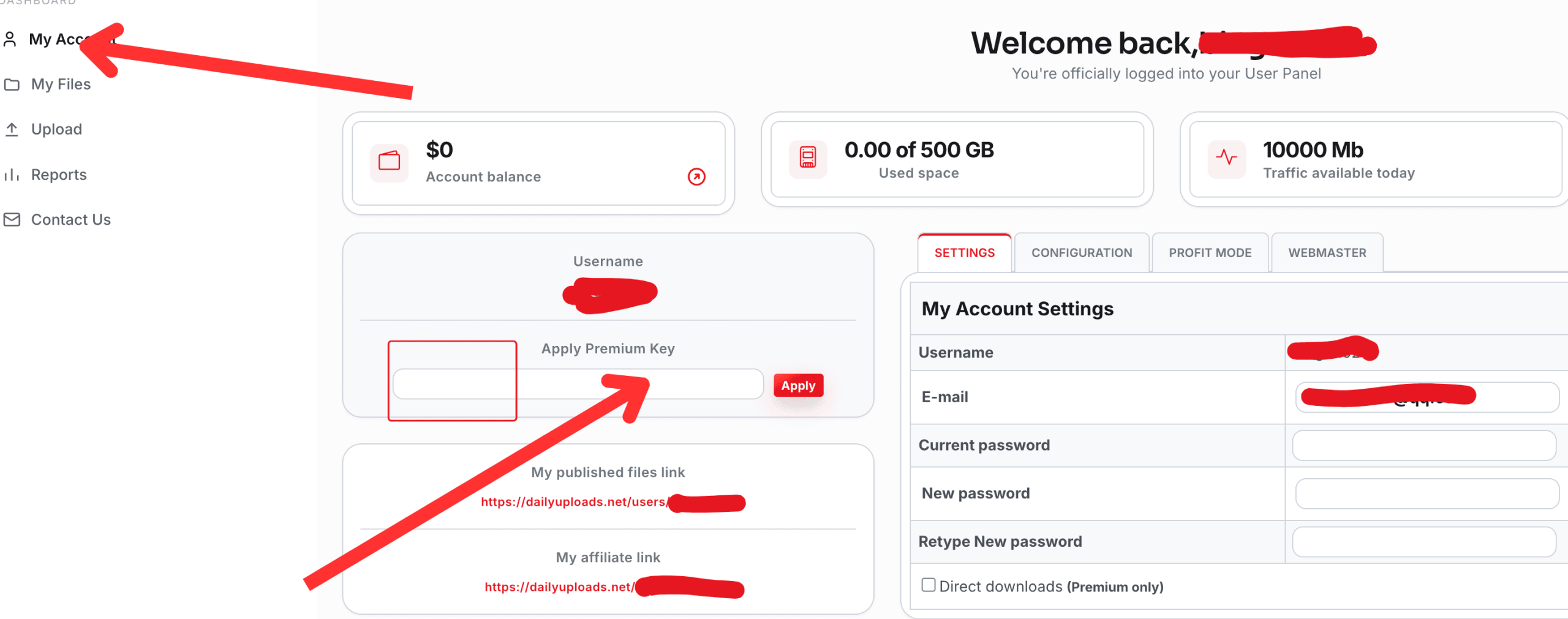
If you receive a membership voucher from a reseller, open My Account, paste the key into the Apply Premium Key field, and click Apply. This is the dedicated membership activation field, separate from any checkout discount code.
How to Use & JDownloader 2 Setup
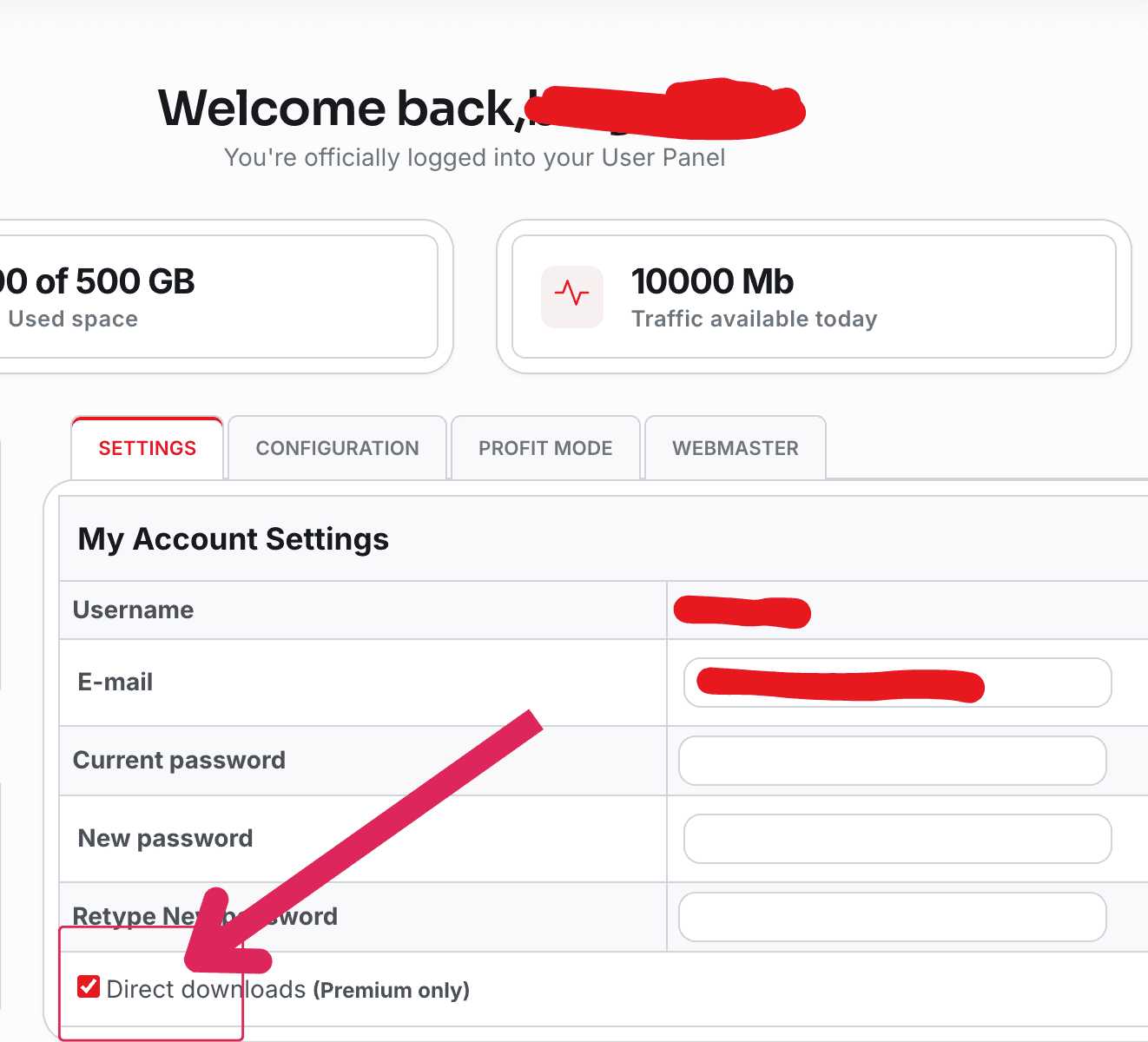
Before downloading through a browser, log in first and make sure the Direct downloads (Premium only) checkbox is enabled in your account settings. This setting skips the file landing page and jumps straight to the download, saving you a click on every file.
To add your account to JDownloader 2:
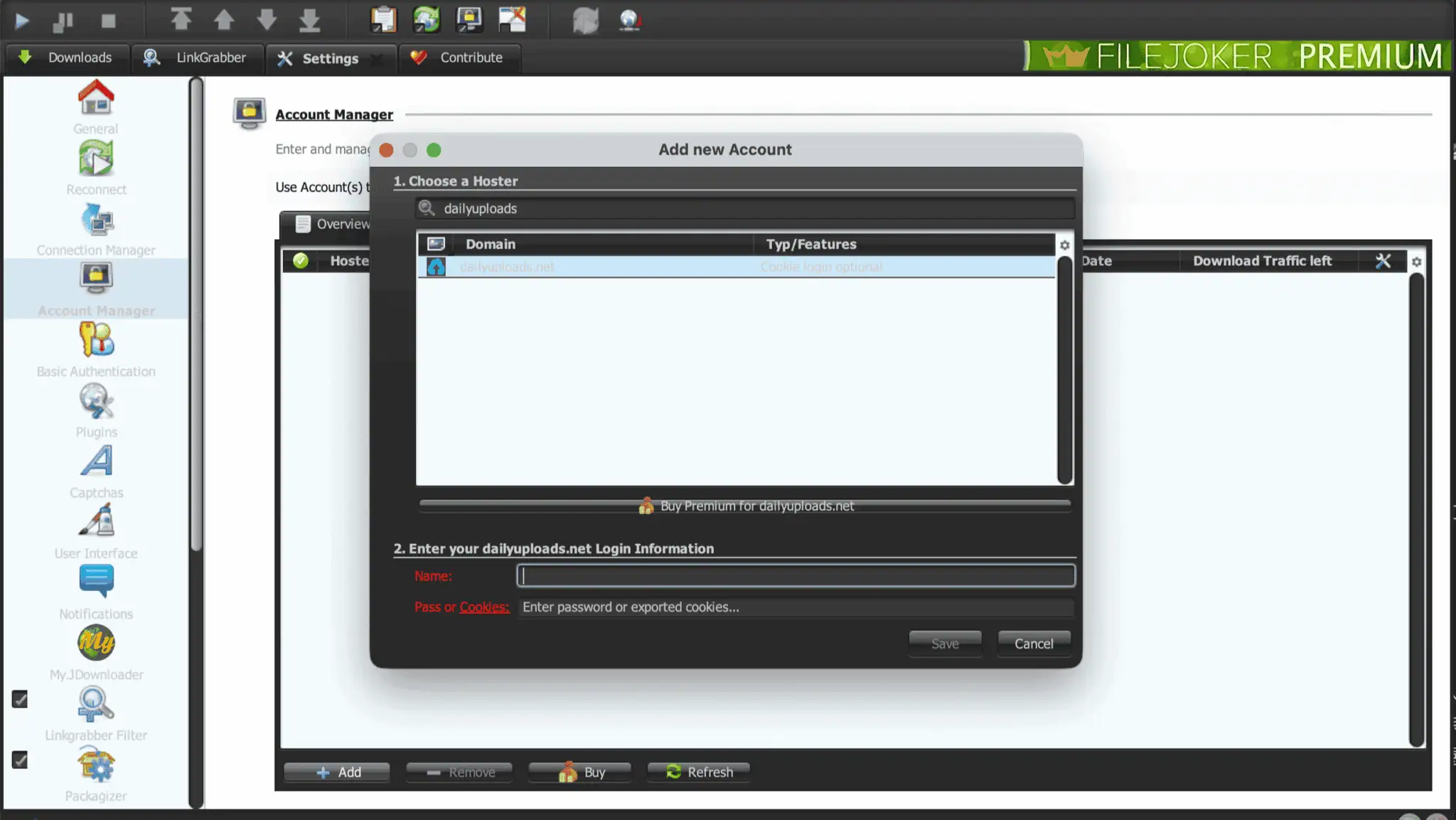
- Open Settings → Account Manager → Add.
- Search for
dailyuploads.net. The dialog lists cookie login as optional. - Enter your registered username and password, then click Save.
Our account check returned Account is ok: Premium Account with 229.749 GiB of 229.749 GiB left — confirm this same status appears before queuing a large download batch.
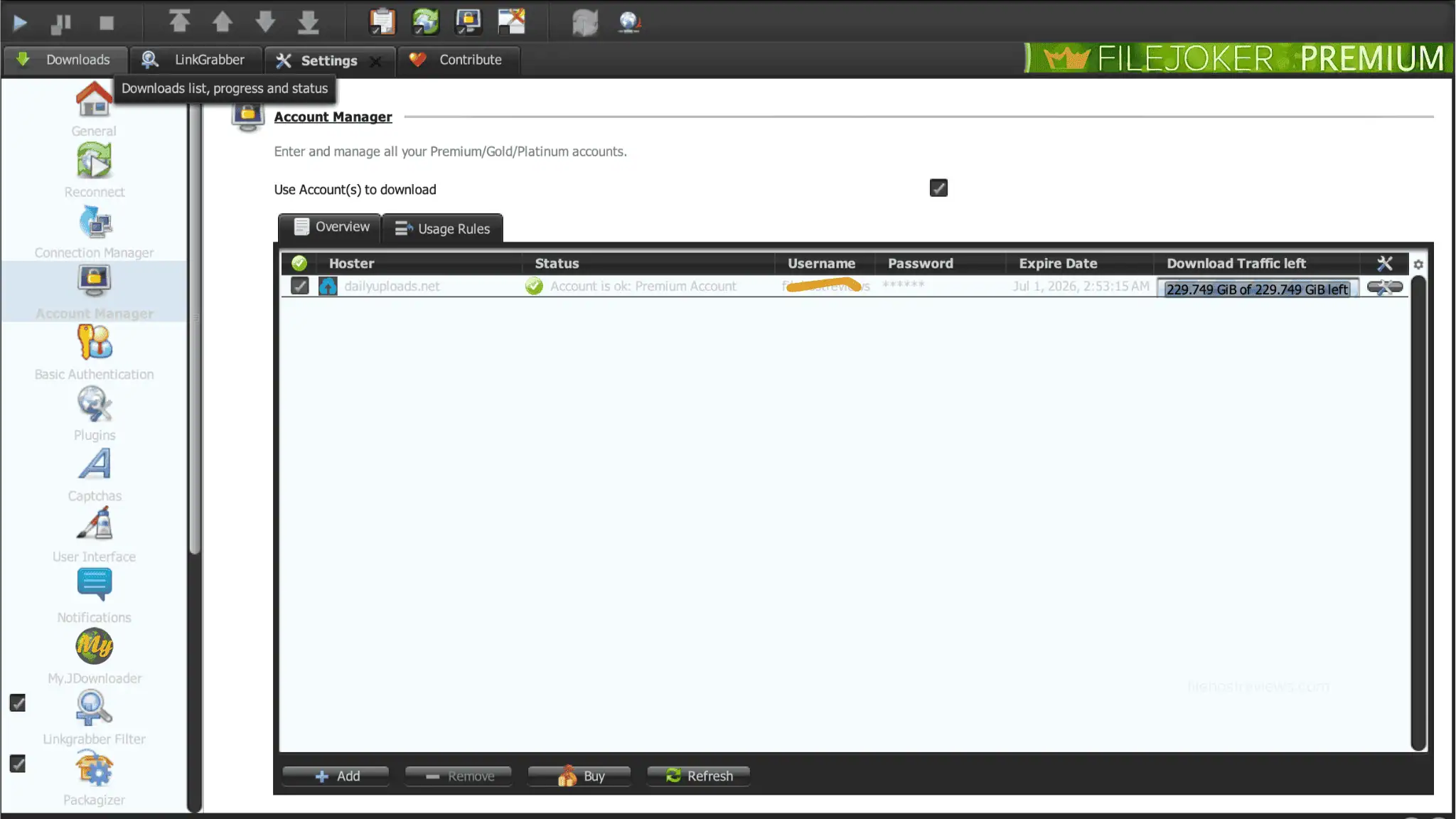
Note the discrepancy here: the website’s plan cards advertise 300 GB/day, but JDownloader 2’s client display showed 229.749 GiB remaining — a different number entirely, and not a simple unit conversion of 300 GB. This is likely a separate traffic pool the client tracks rather than a daily reset counter, so don’t treat the JD2 figure as your actual daily allowance. Budget against the 300 GB/day figure published on the plan page, and use the JD2 number only as a general indicator that your account is active and has substantial balance remaining.
Four simultaneous files is a reasonable starting configuration based on our testing, though nothing in our captures proves a fixed connection ceiling — you may be able to push higher depending on file sizes and server response. See our guide to JDownloader compatible file hosts for other services that work the same way.
Activate Your DailyUploads Account NowLimits & Things to Know Before Buying
- The $15 checkout markup is real: our 90-day card checkout billed $44.99 against an advertised $29.99 — a $37.49 item price plus $7.50 in charges. Always verify the actual total before confirming payment.
- Quota figures don’t match: the plan cards advertise 300 GB/day, while JDownloader 2 displayed 229.749 GiB remaining on the same account — a separate number, not a simple conversion. Budget using the published 300 GB/day figure.
- Speed labels are marketing, not tiers: “Standard,” “Turbo,” and “Max” all carry the same 300 GB/day allowance with no documented or tested speed difference between them.
- Free tier IP glitches happen: we encountered a “Wrong IP address” warning alongside the standard wait and CAPTCHA on the free download page, with no explanation offered.
- Confirm “one-time payment” at checkout: the plan cards describe a single charge with no recurring billing, but verify this matches the terms shown on your specific payment gateway or reseller order before paying.
Alternatives & Who Should Buy
Buy DailyUploads Premium if:
- You frequently need files hosted on DailyUploads specifically.
- You want parallel browser downloads or batch queuing through JDownloader 2.
- The advertised 80 GB file-size limit and 300 GB/day allowance comfortably cover your usage.
Skip it if:
- You only need occasional small files that the free tier’s limits already handle.
- The same files are mirrored on a host you already subscribe to — check our DailyUploads alternatives guide before paying twice.
- You’re specifically drawn to the 90-day plan for its advertised price — the real checkout total may change the math.
Frequently Asked Questions
Is DailyUploads Premium worth it?
It’s worth it if you regularly download DailyUploads-hosted files or want to run batch queues in JDownloader 2. Our tests confirmed genuine parallel download support and a meaningful speed jump over free access — 12.6 MB/s versus 3.0 MB/s on a single file. For occasional small files, weigh the free tier’s limits against your chosen plan’s price.
How fast is DailyUploads Premium?
Chrome reached 12.6 MB/s on a single file and 20.5 MB/s combined across two files. In JDownloader 2, four active downloads produced Current readings of 35.01 MiB/s and 31.91 MiB/s across two separate captures, landing in a consistent 32–35 MiB/s range.
What’s the daily download limit?
The plan cards advertise 300 GB/day across all four tiers. Our JDownloader 2 account check separately showed 229.749 GiB remaining — a different figure from a different system, not a direct conversion of the 300 GB quota. Treat the 300 GB/day figure as your actual daily budget.
What do Standard, Turbo, and Max mean?
These are duration-based branding, not speed tiers. Standard covers the 30-day plan, Turbo covers the 90- and 180-day plans, and Max covers the 365-day plan. All four carry the identical 300 GB/day allowance, and nothing in DailyUploads’ materials assigns a distinct speed to any label.
Why does checkout cost more than the advertised price?
Our 90-day card checkout displayed a $37.49 item price plus $7.50 in Charges, totaling $44.99 against an advertised $29.99 — a $15 difference. The higher item price itself isn’t explained on the checkout screen, so confirm the actual total before paying rather than trusting the plan card figure.
Does DailyUploads work with JDownloader 2?
Yes. Our Premium account was recognized immediately under the dailyuploads.net entry in Account Manager, with cookie login available as an optional alternative to username and password. The client confirmed Premium status and downloaded four files in parallel at a combined 32–35 MiB/s.
Does DailyUploads Premium renew automatically?
The plan cards describe a one-time payment with no stated recurring billing. Still, confirm this on your specific payment gateway or reseller’s checkout terms before completing a purchase, since billing descriptions can vary by payment route.
Final Verdict
DailyUploads Premium delivers genuinely strong multi-file throughput at a budget-friendly starting price — 12.6 MB/s in Chrome and a consistent 32 to 35 MiB/s across four files in JDownloader 2. Start with the $12.99 30-day plan to confirm the service works for your connection and your files before committing to a longer term. If you move to the 90-day plan, watch the checkout screen closely: our card payment billed $44.99 against the advertised $29.99, a $15 jump worth catching before you confirm. Once you’re set up, enable Direct Downloads in your account settings to skip landing pages entirely, and queue multiple files in JDownloader 2 rather than downloading one at a time through the browser.
Check Current DailyUploads Plans